System Logic
The interface keeps the print process simple, while the app handles the technical details in the background.
What the user does
- Choose what to print
- Prepare
- Preview
- Connect printer
- Print
What happens in the background
- Input profile
- ICC profile matching
- Color conversion
- Gamut mapping
- Output optimization
Different types of prints require different preparation.
Three ways to get started
Photography
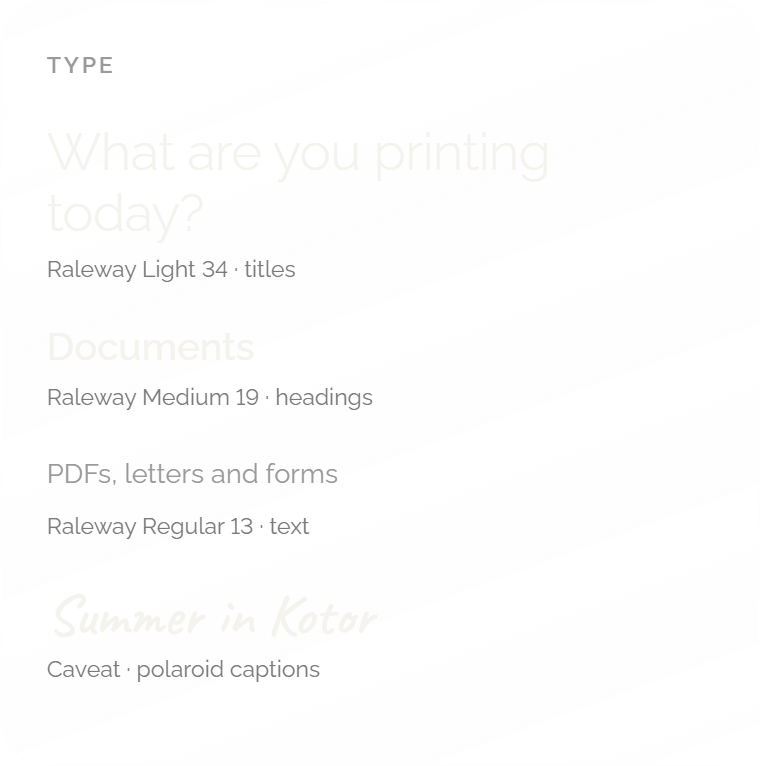
The paper is part of the picture.
- Starts with
- Paper size and finish
- Decisions
- Border, layout, light edits, caption
- Goes wrong when
- The crop or border isn't what you pictured
Document
The file is fixed; the sheets are the question.
- Starts with
- The file
- Decisions
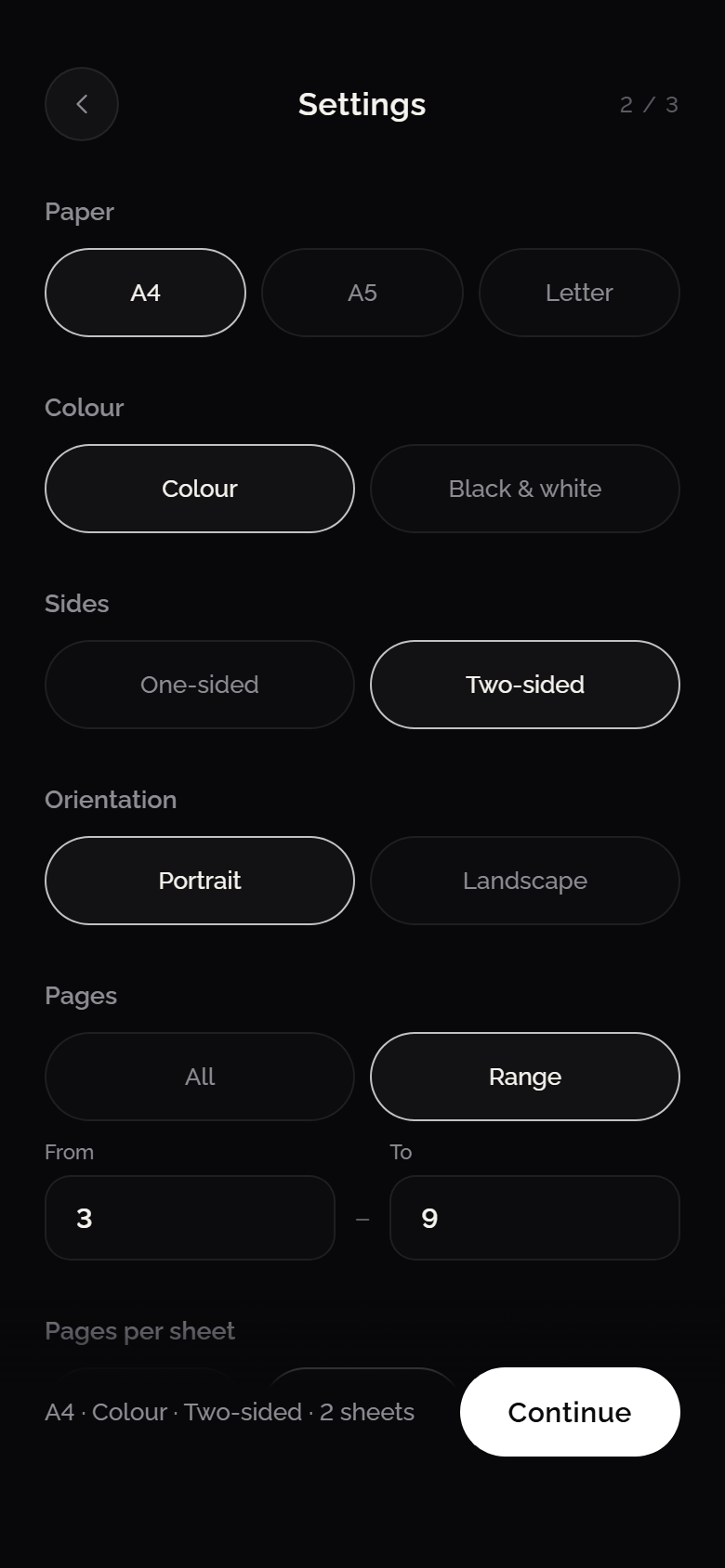
- Page range, sides, pages per sheet, colour
- Goes wrong when
- You print 24 pages and needed three
Design
Exact size, and what happens at the edge.
- Starts with
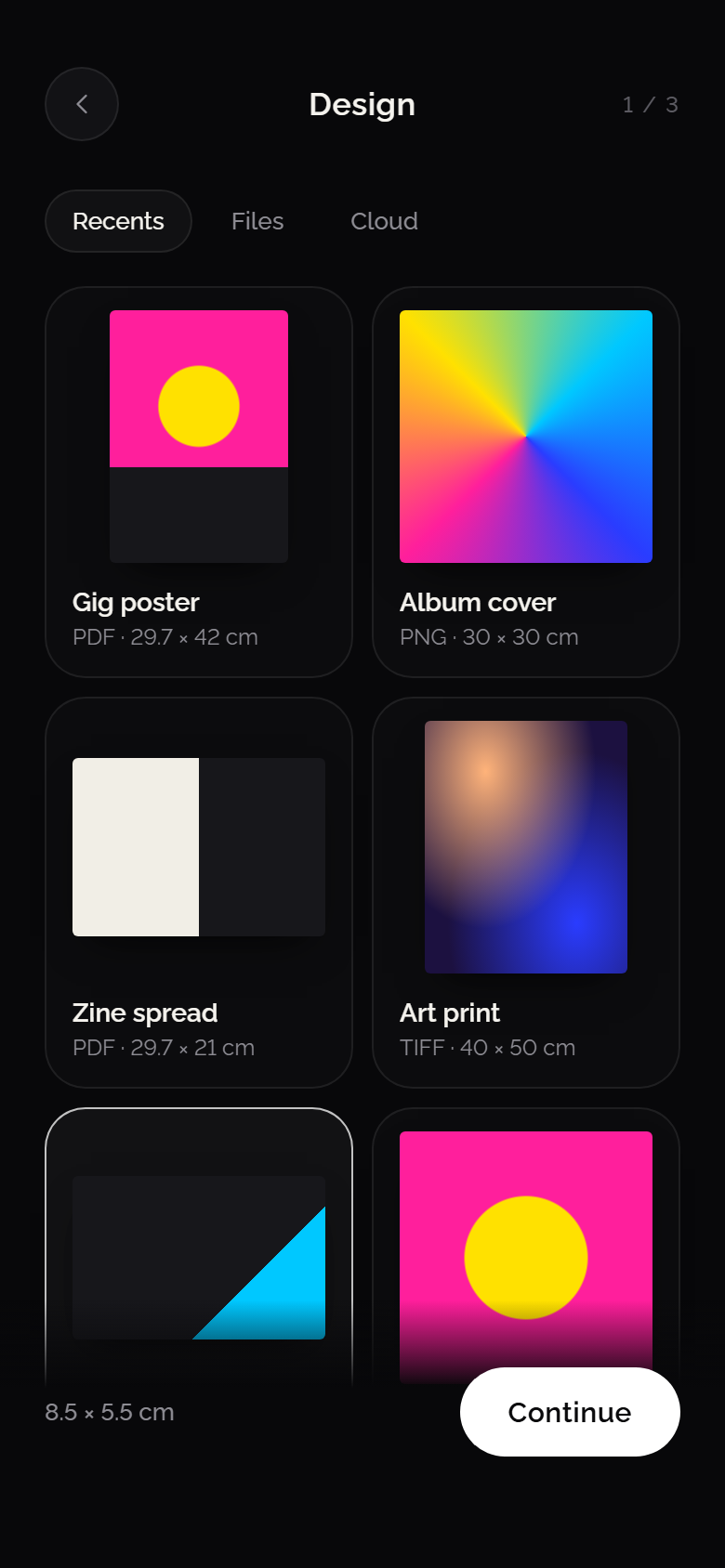
- The artwork and its real dimensions
- Decisions
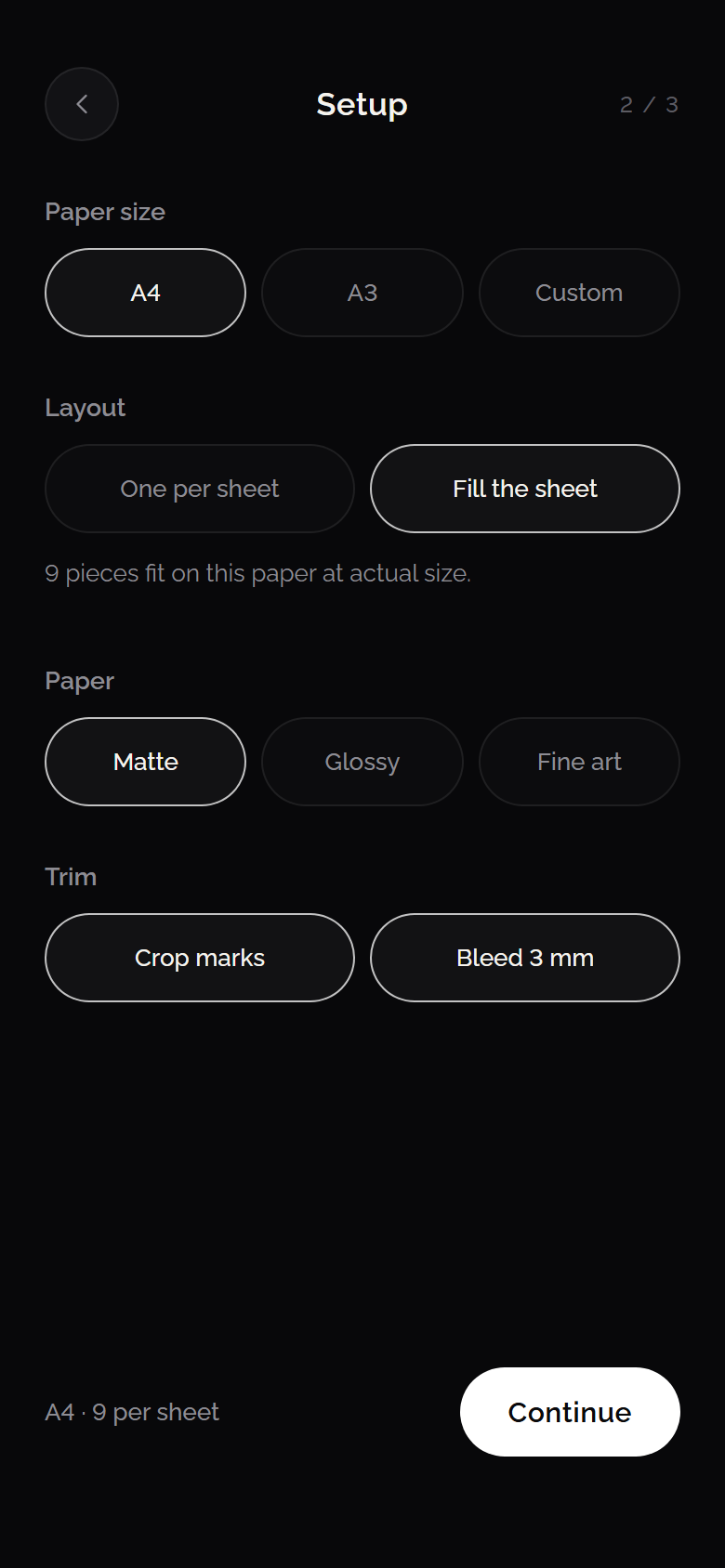
- Paper size, scale, repeat, crop marks, bleed
- Goes wrong when
- It's scaled, or trimmed with a white edge
Structure
One entry point, three tailored paths, and one consistent print experience that brings everything together.
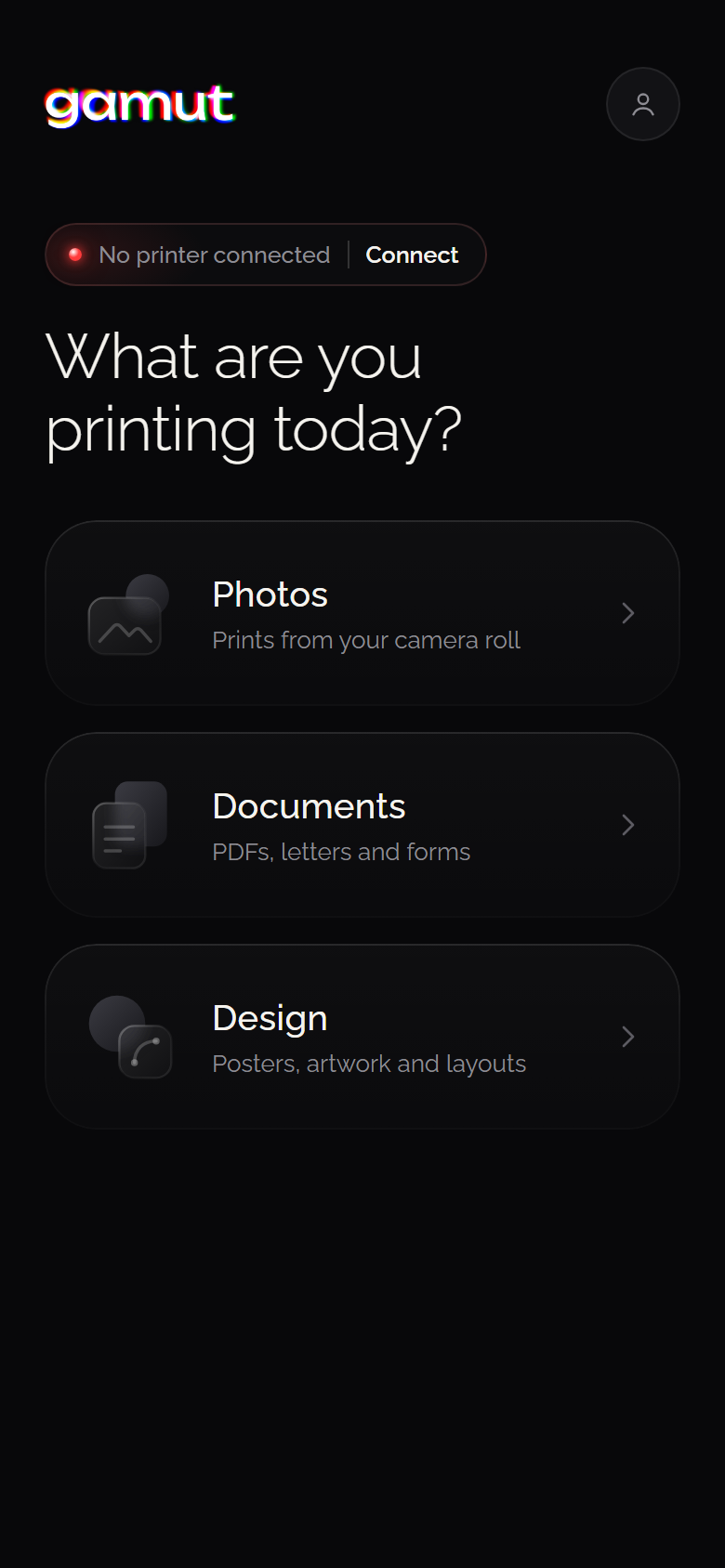
HomeWhat are you printing today?
Photos
- Paper
- Photos
- Edit
- Review
Documents
- Document
- Settings
- Review
Design
- Artwork
- Setup
- Review
- Connect
- Print
- Done
Shared by every flow
Useful extras
Beyond basic printing, the app adds practical tools for editing, arranging, and preparing content for print.
Edit & Arrange
- Photo Edit
- Polaroid
- Collage
- Print Preview
Automatic Print Preparation
- Design
- Fill the sheet
- Bleed & Crop Marks
- Print Preview
Design System
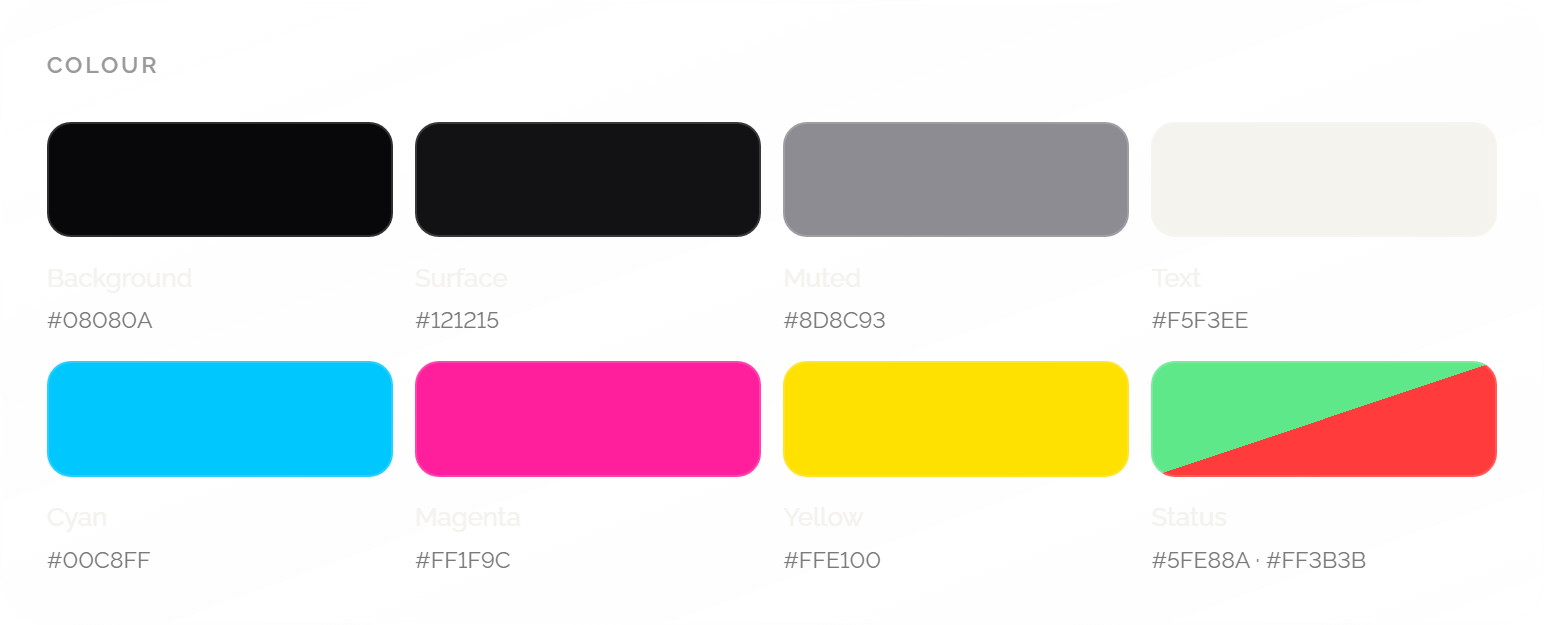
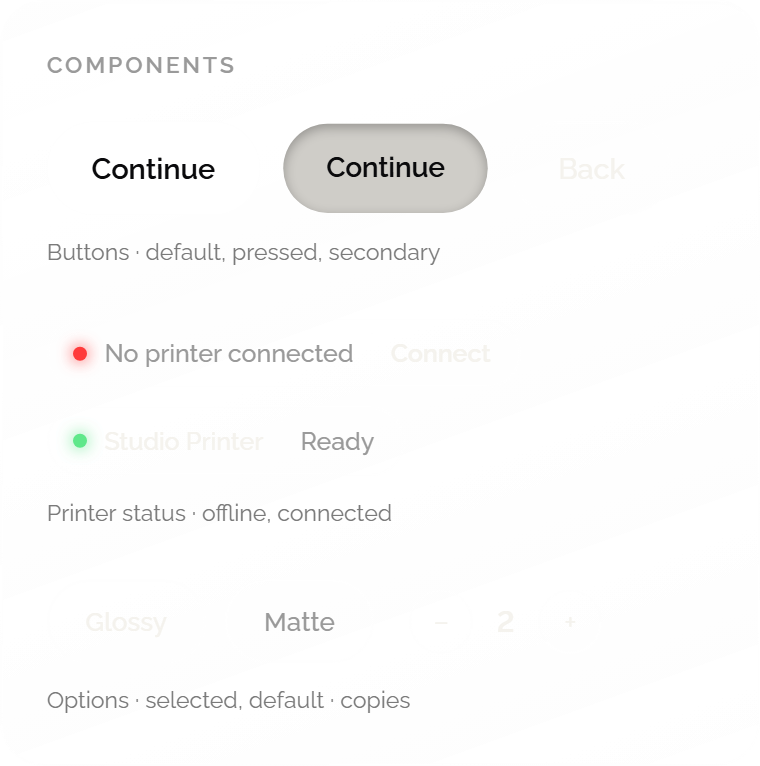
The interface stays near-black and grey, so the photos, pages and artwork are the only colourful things on screen.
Entry point
A single entry point adapts the workflow to the user's print intent.
Nothing competes for attention: a simple question, three clear options, and a small status pill showing whether the printer is ready.
Photography
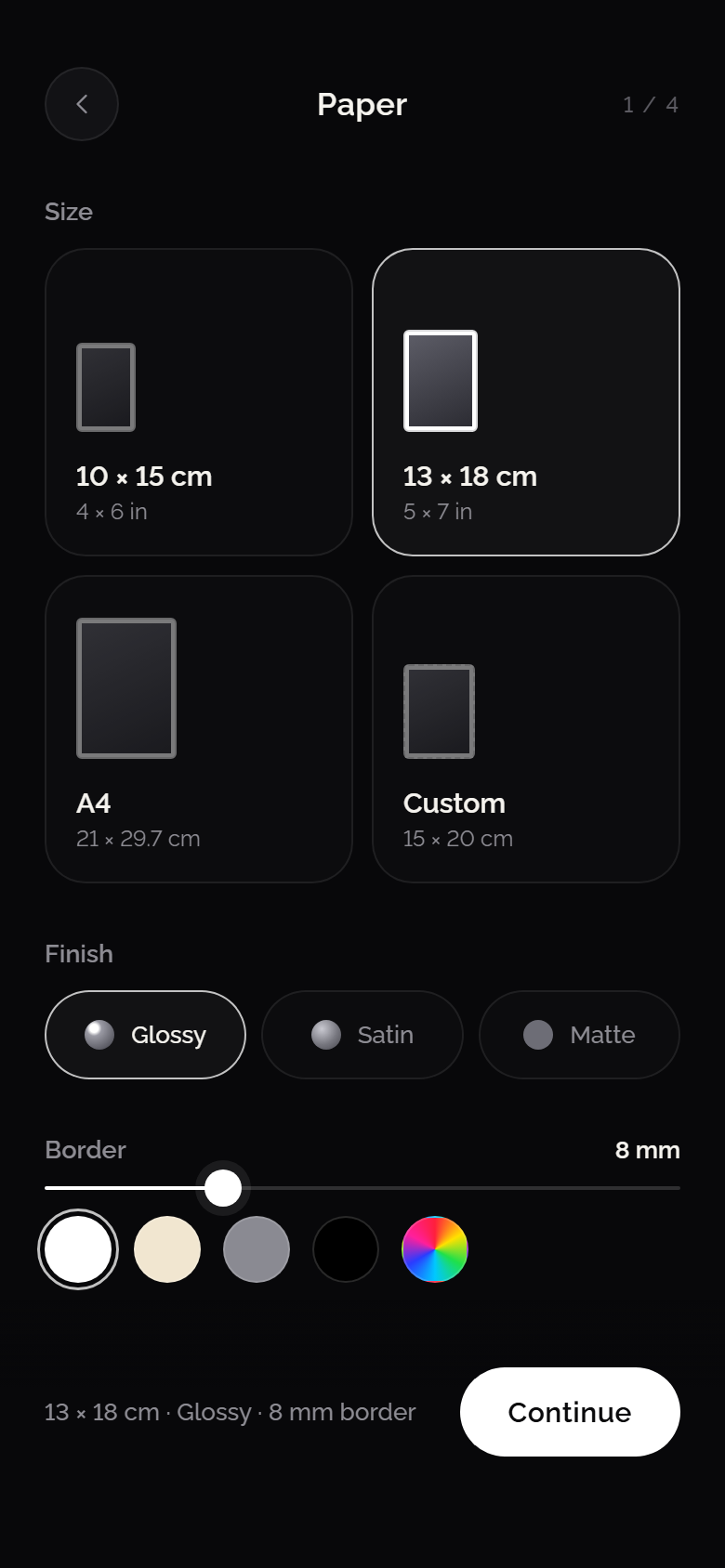
Paper first, because size, finish and border decide how the photo should be cropped and edited.
1 PaperSheets drawn to scale, with a live border preview.
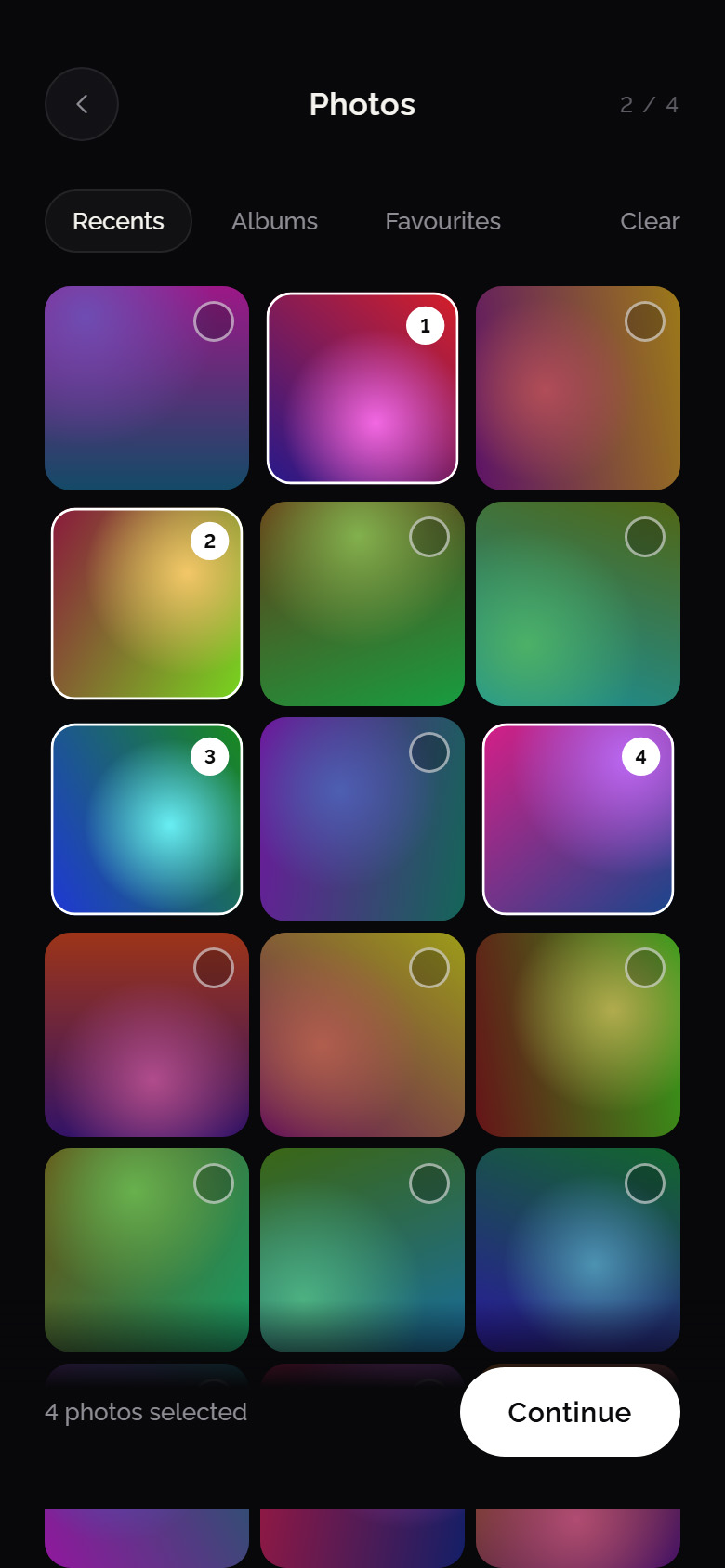
2 PhotosNumbered selection keeps the print order clear.
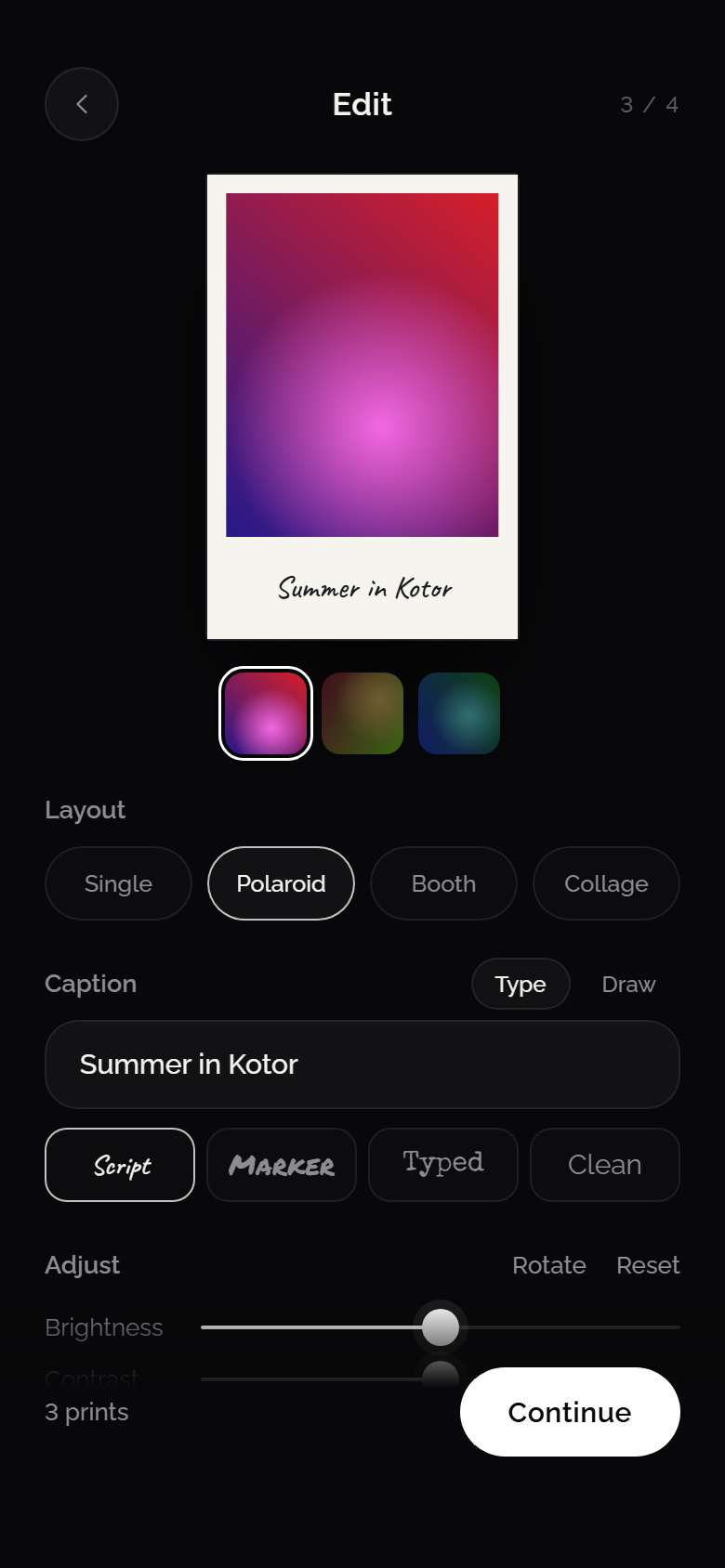
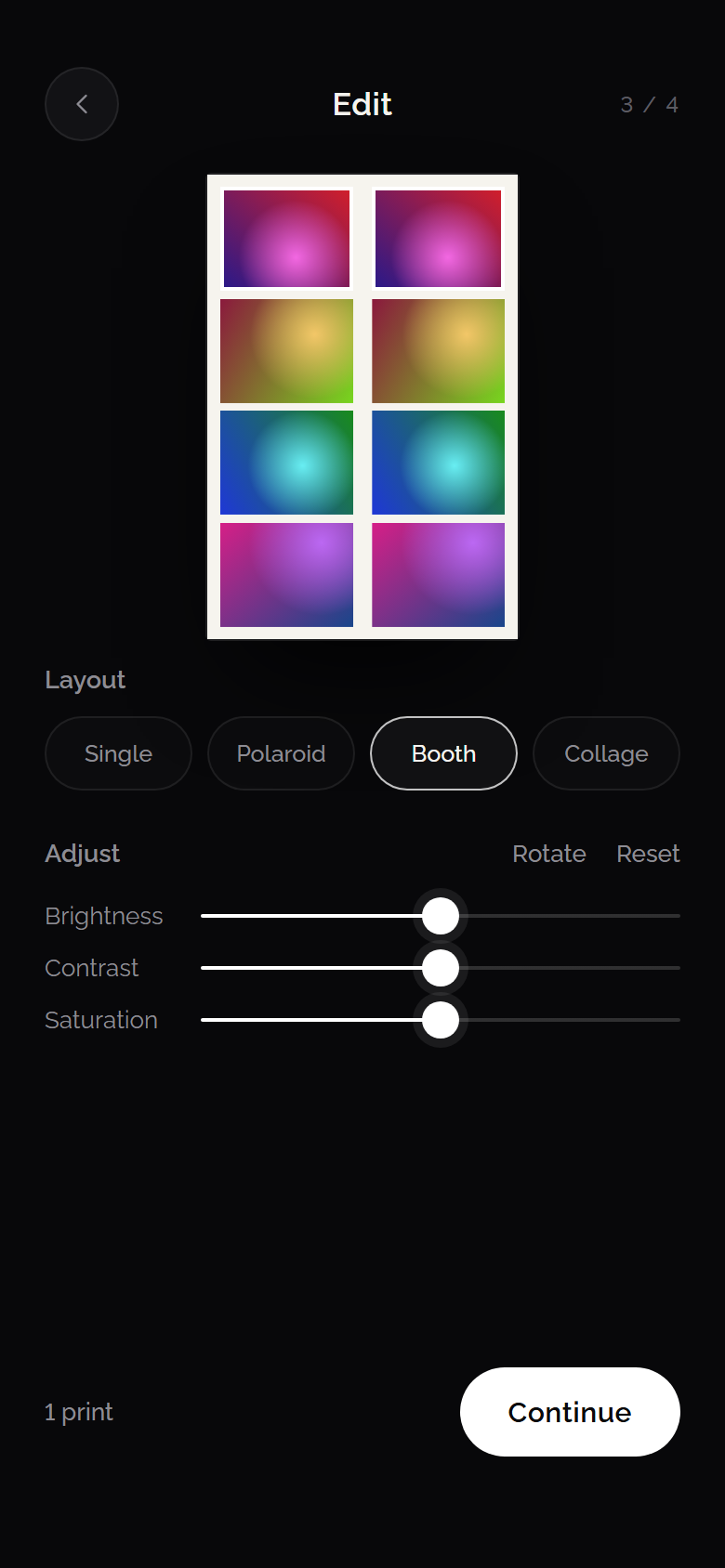
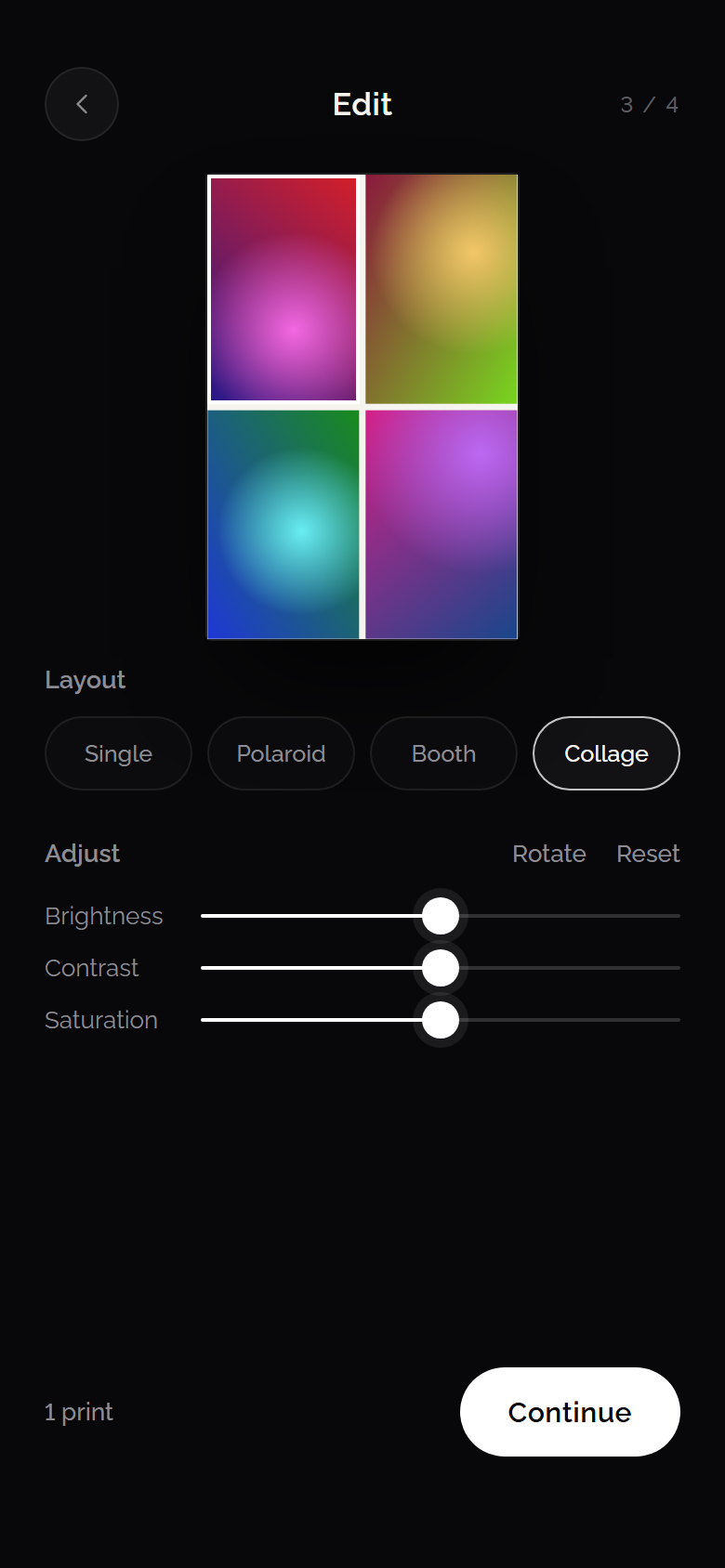
3 EditLayout, caption and light adjustments.
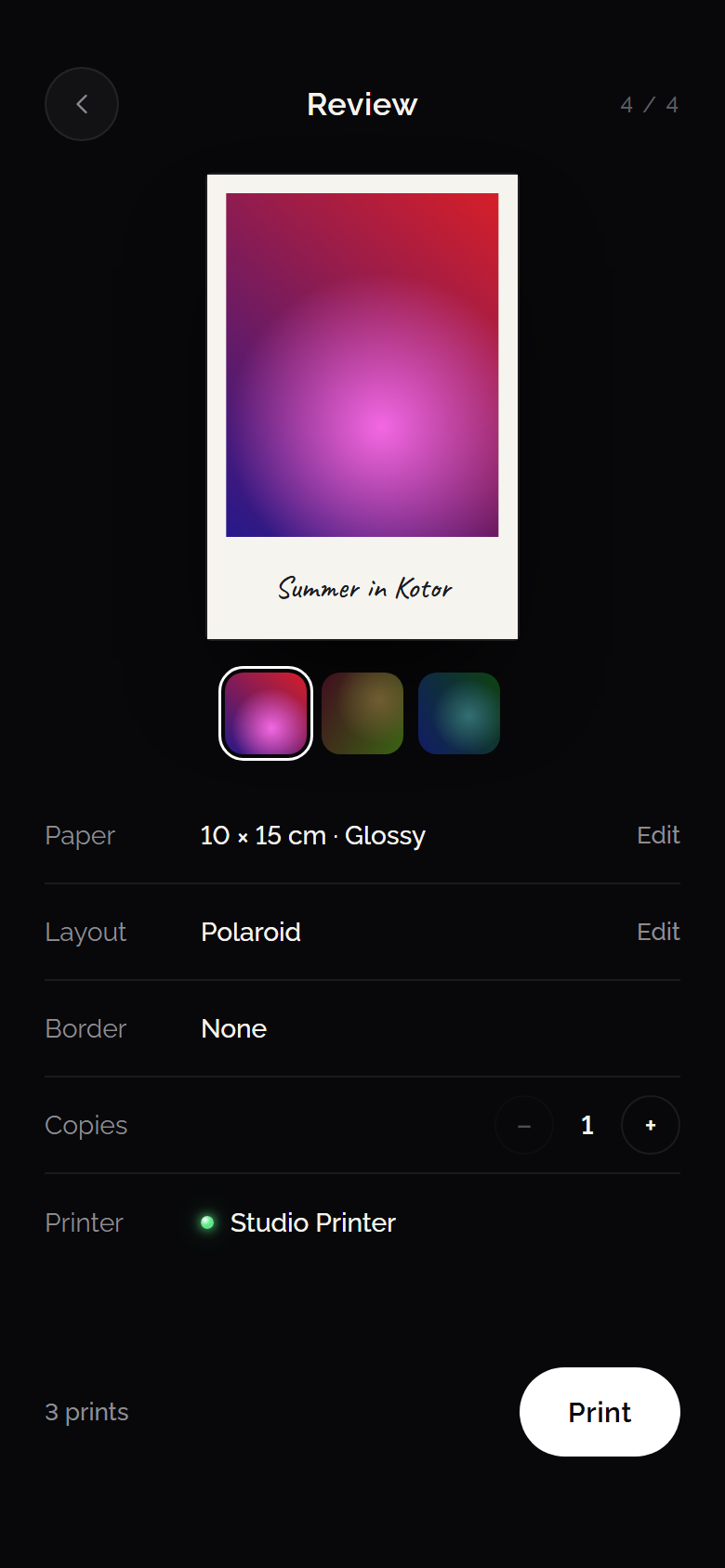
4 ReviewThe finished sheet, copies and printer.
PolaroidA white strip you can type on or write on by hand.
PhotoboothTwo strips of four frames, ready to cut apart.
CollageUp to four photos share one sheet.
Document
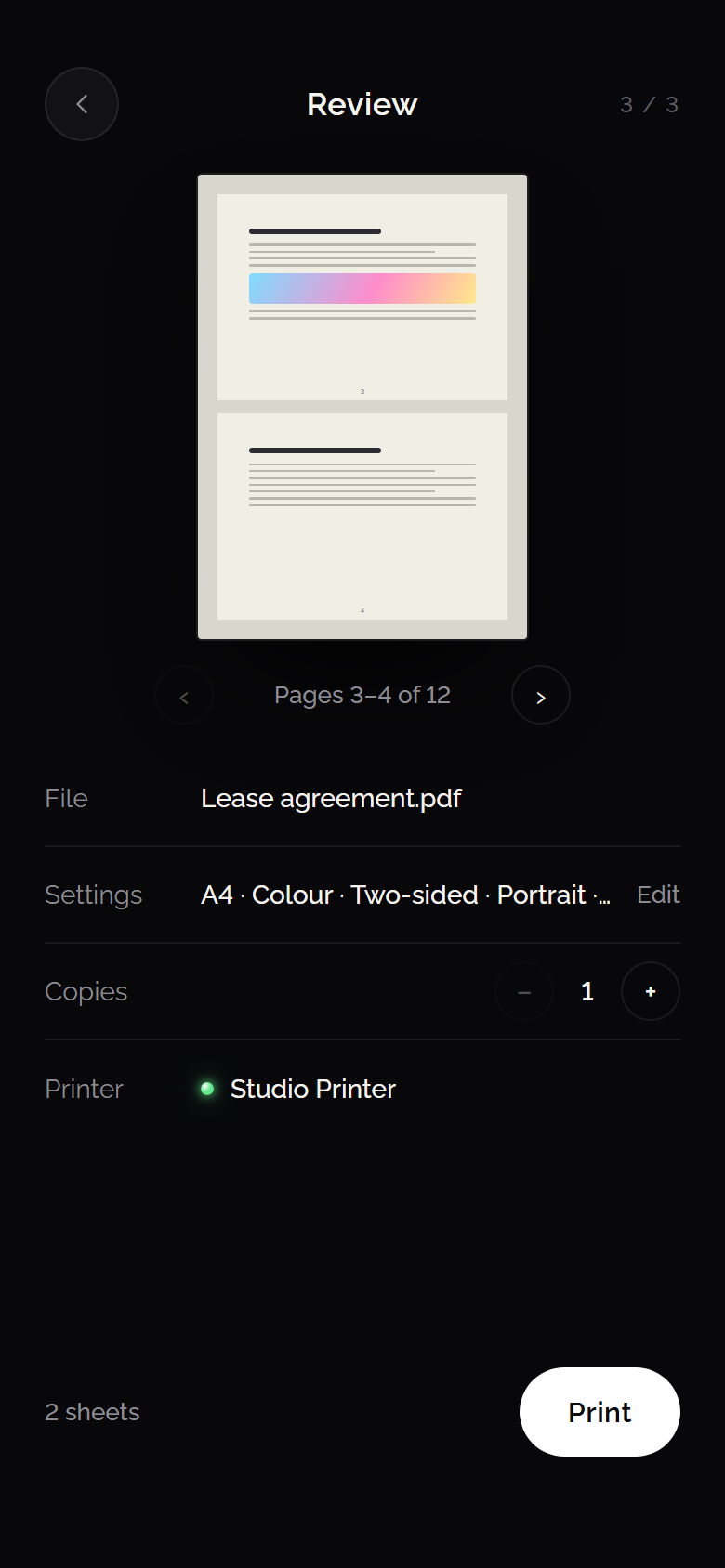
File first, because the page count shapes everything after it. The tray keeps a running total of sheets.
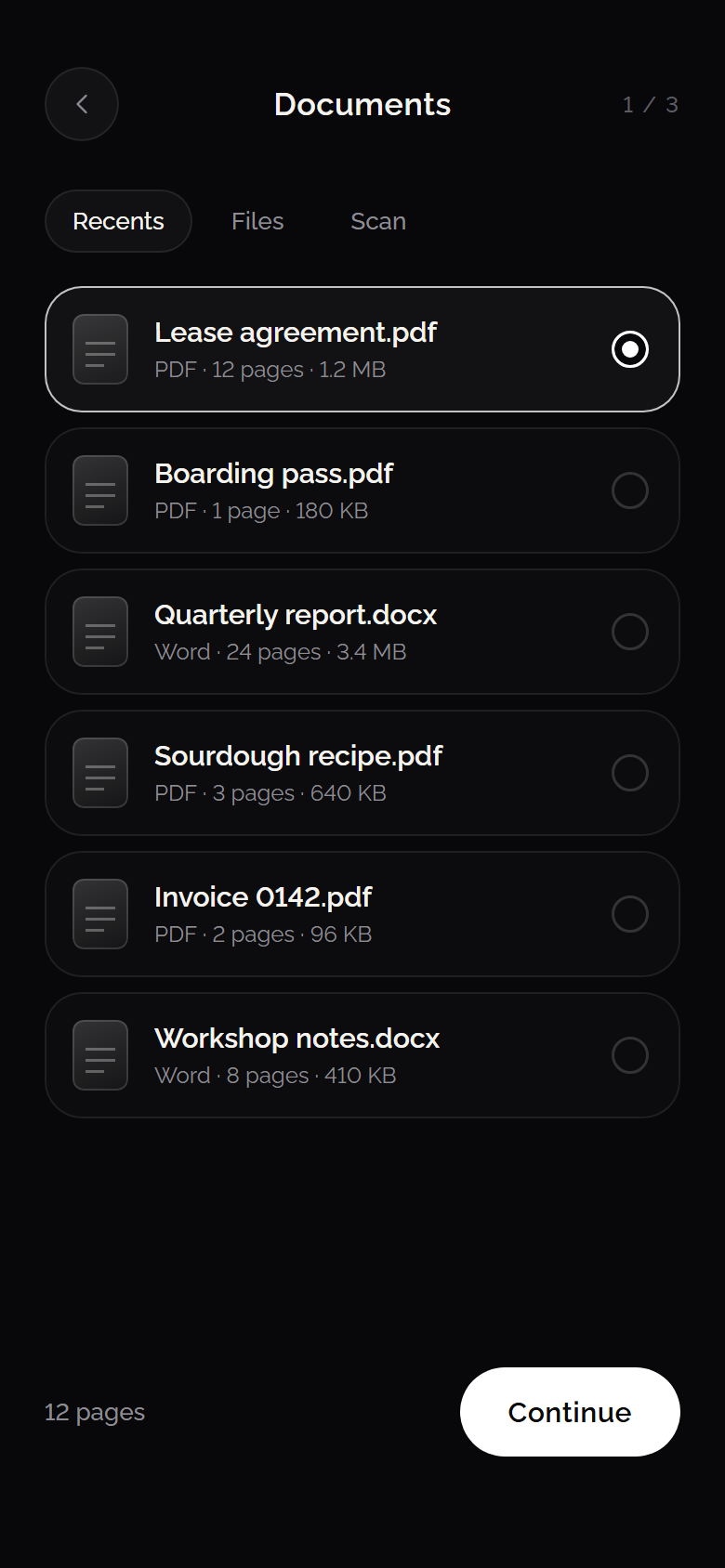
1 DocumentType, pages and size at a glance.
2 SettingsSeven pages, two per sheet, two-sided: two sheets.
3 ReviewPage through the sheet exactly as it will print.
Design
Artwork keeps its real dimensions. The app works out how it sits on the paper, and how many copies fit.
1 ArtworkEvery piece shown at its own proportions.
2 SetupFill the sheet counts the pieces for you.
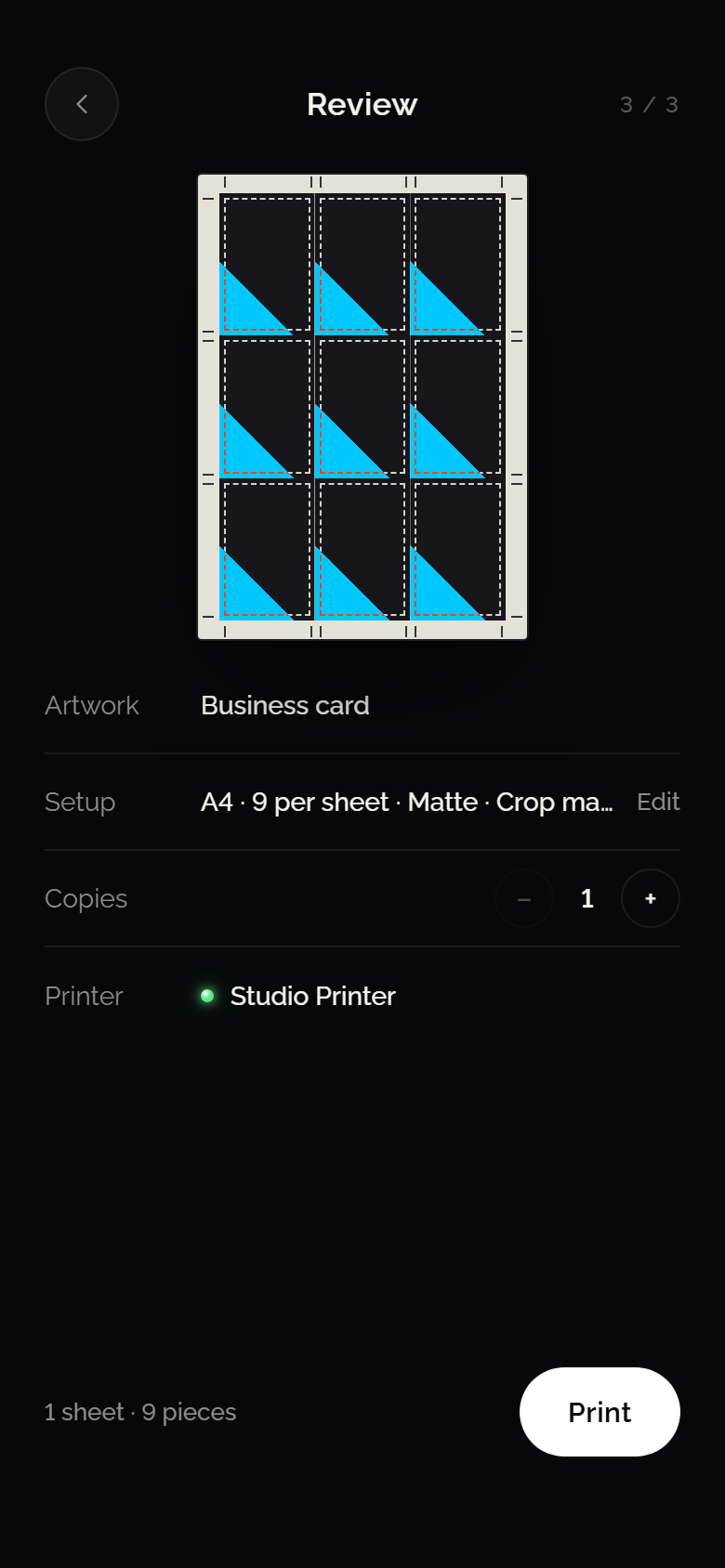
3 ReviewNine cards on A4, turned to fit one more row.
Fill the sheetPieces are spaced for bleed, with one crop mark per cut line.
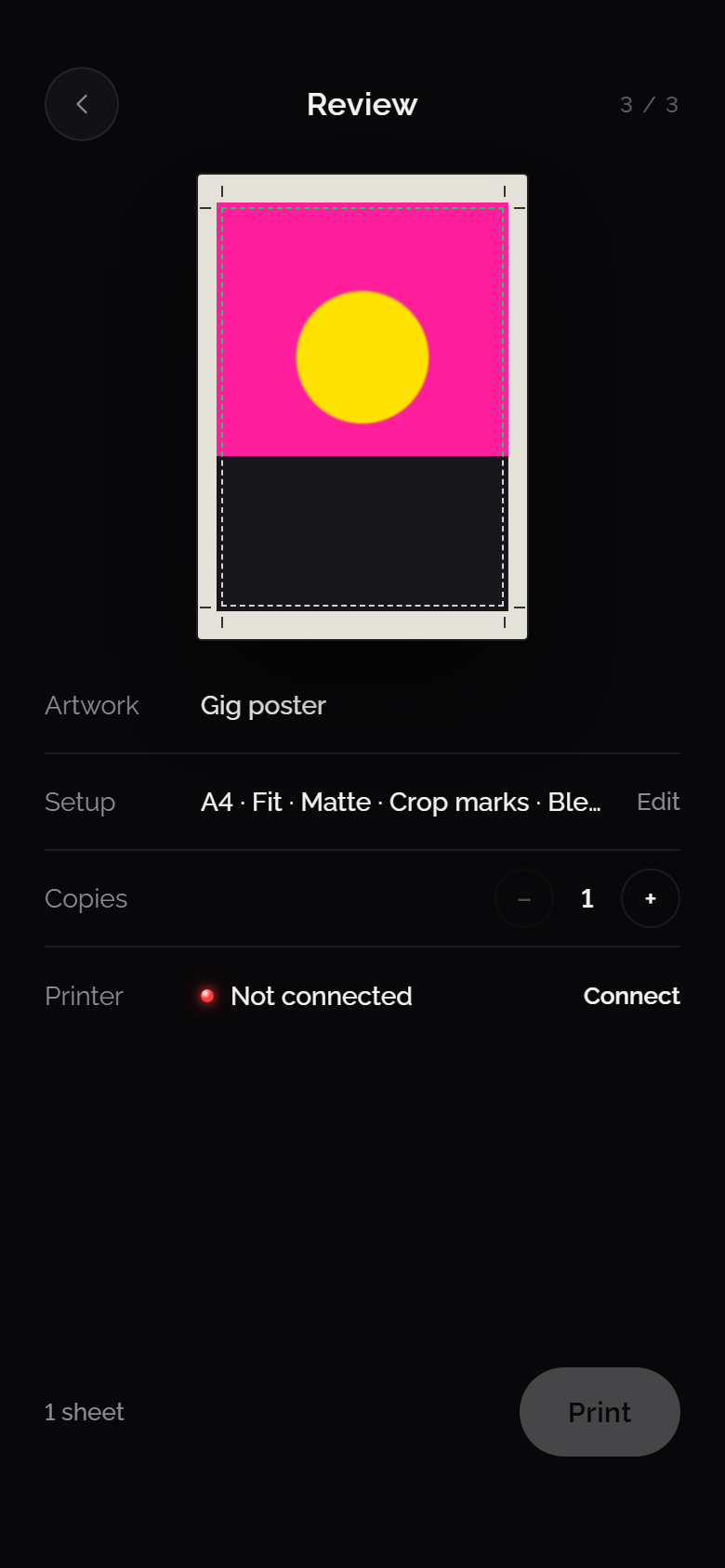
Bleed and crop marksThe image runs 3 mm past the trim edge; marks sit on the final size.
Final step
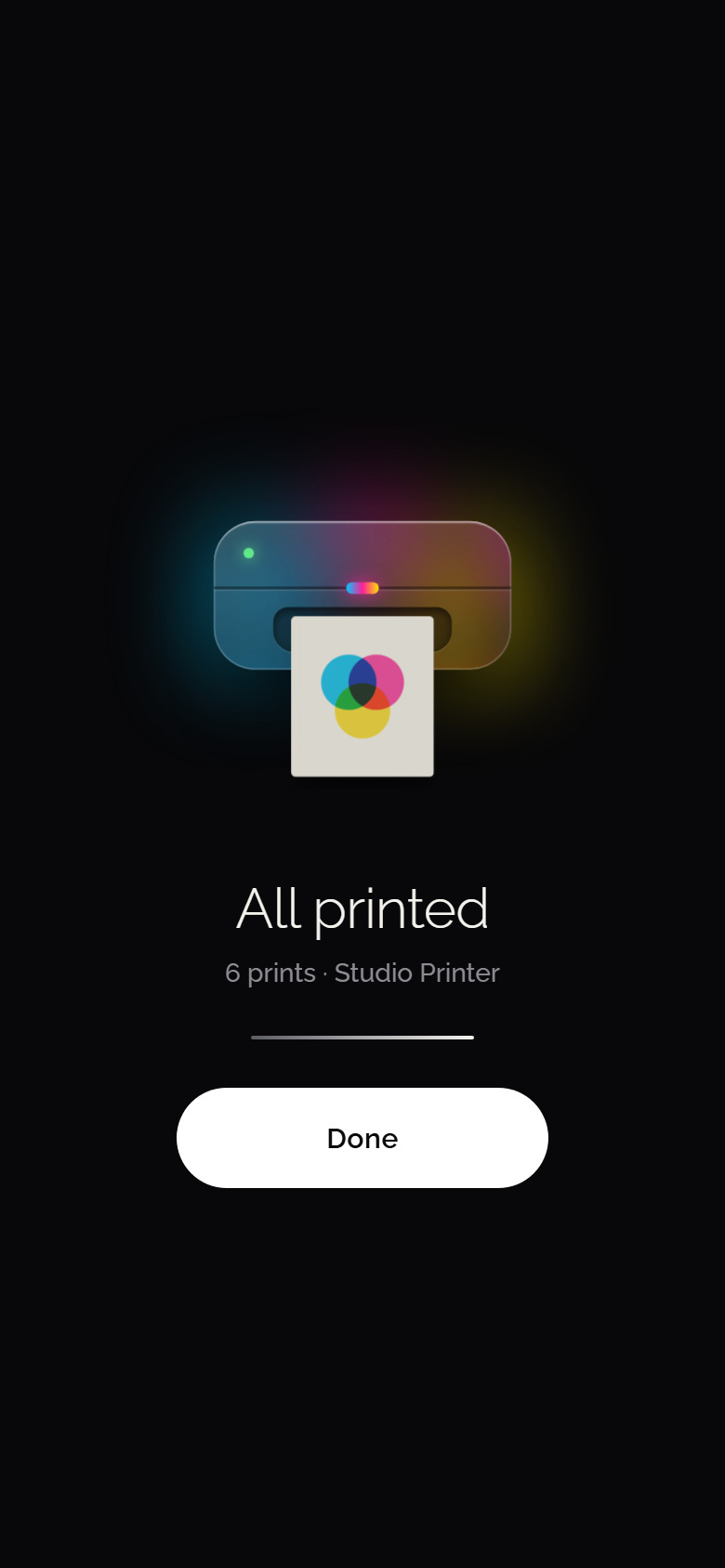
Every flow hands over to the same ending: find a printer, check the ink, watch it print.
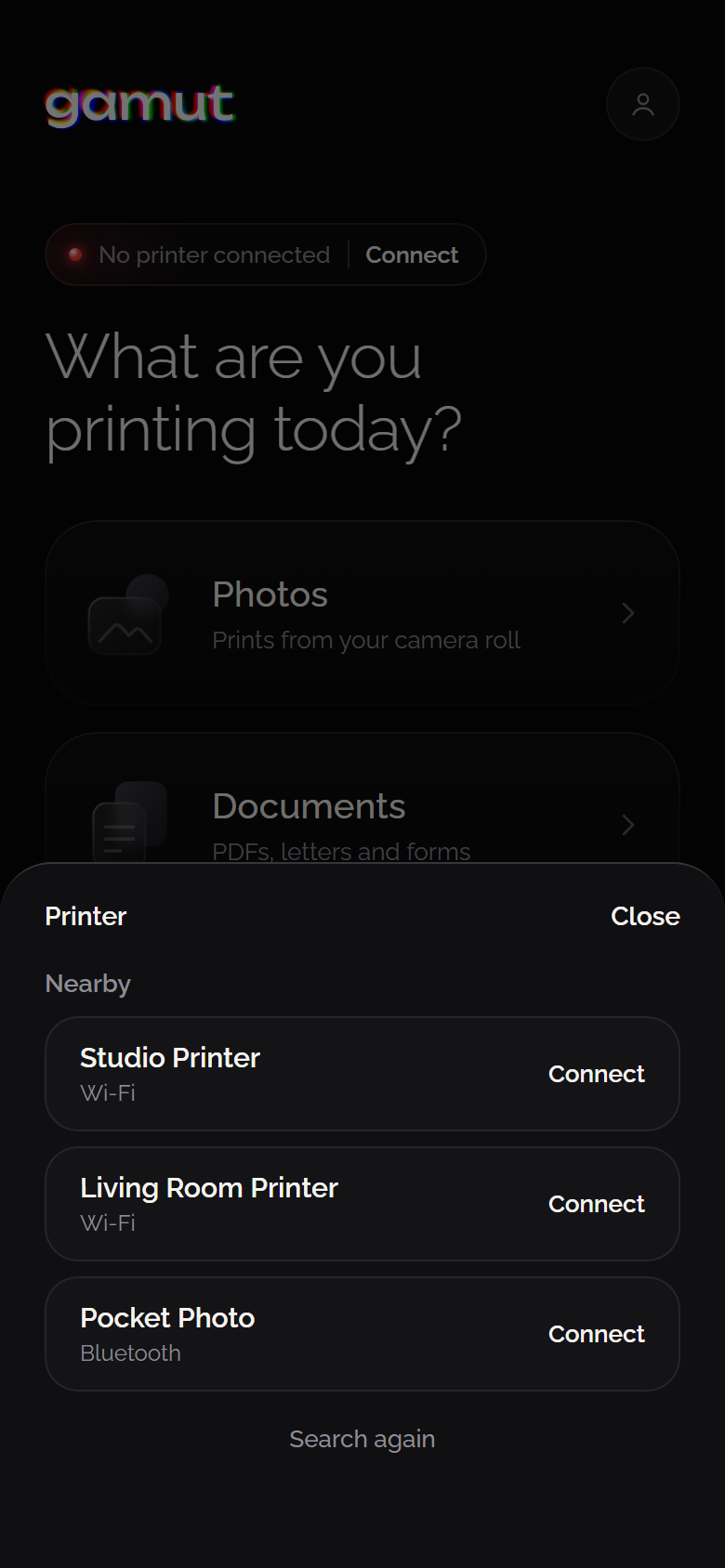
NearbyPrinters found over Wi-Fi and Bluetooth.
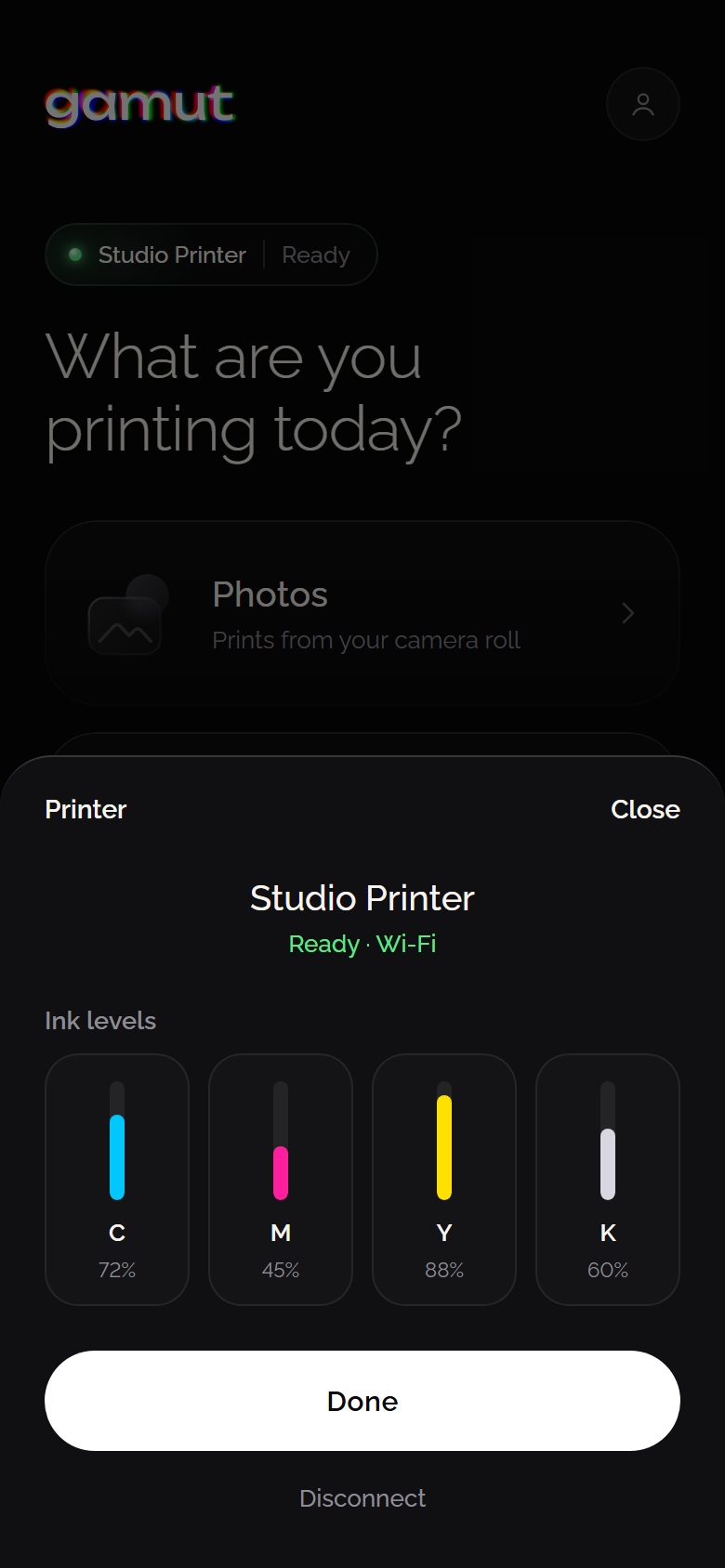
ConnectedInk levels in the four colours they are.
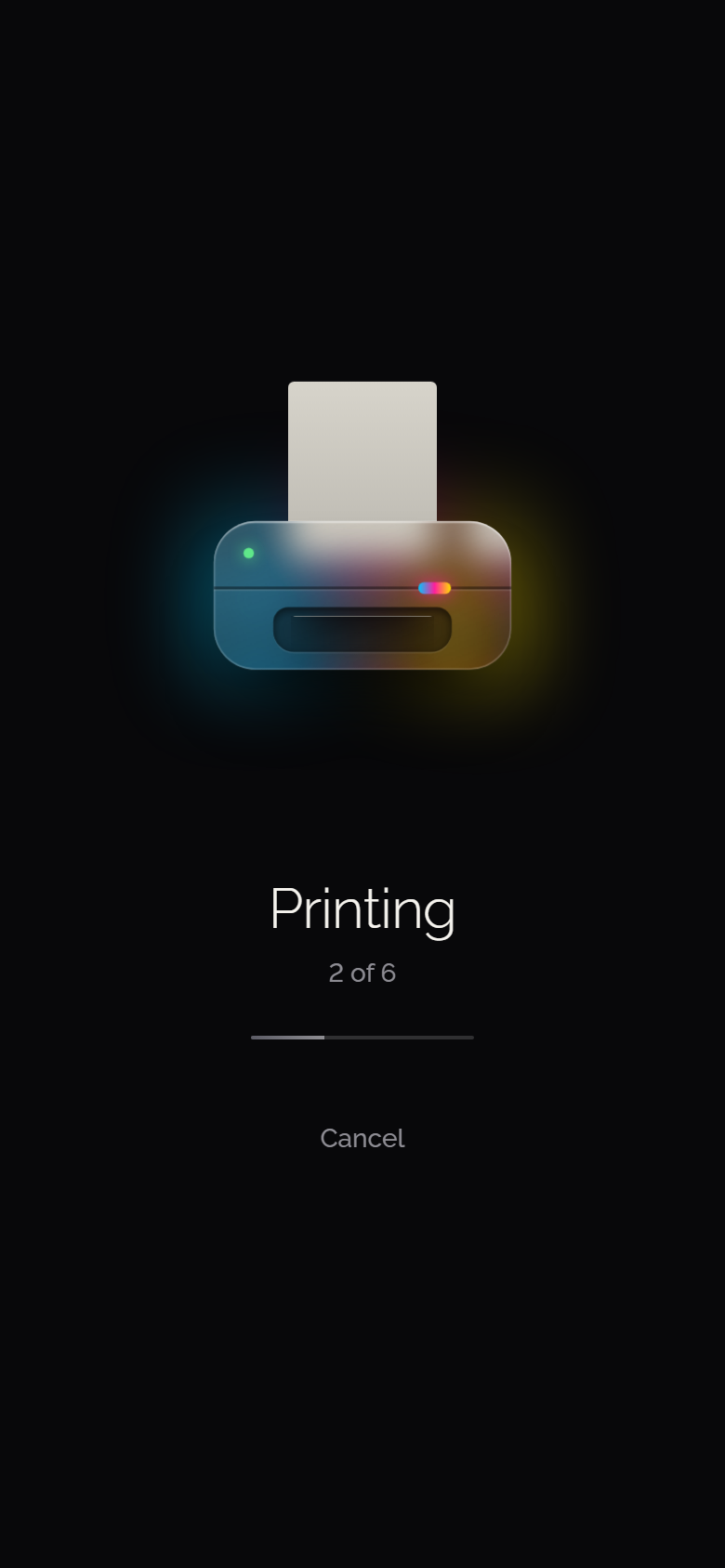
PrintingA glass printer feeds paper in step with the job.
DoneThe last sheet stays out in the tray.